Easy and Effective Tips for Using Adobe Photoshop Tips and Tricks
Adobe Photoshop is one of the most powerful tools for photo editing, graphic design, and digital art. While it may seem complex at first, learning a few essential techniques can make your experience much easier and more enjoyable. Whether you are a beginner or someone looking to improve your workflow, these tips will help you use Photoshop more efficiently.
Learn Keyboard Shortcuts
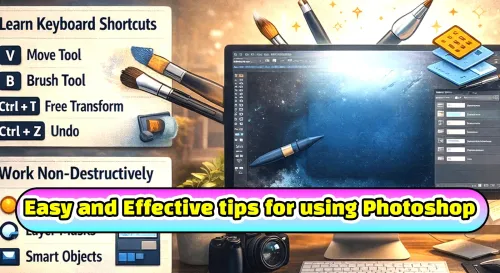
One of the fastest ways to improve your speed in Photoshop is by learning keyboard shortcuts. Instead of searching through menus, you can switch tools instantly. For example, pressing “B” selects the Brush Tool, while “V” activates the Move Tool. Using “Ctrl + T” allows you to transform images quickly. Over time, these shortcuts will become second nature and significantly speed up your work.
Use Layers for Better Organization
Layers are the foundation of Photoshop. Every image, text, or effect should be placed on its own layer. This makes editing easier and prevents unwanted changes to other parts of your design. Naming your layers properly and grouping them helps you stay organized, especially when working on complex projects.
Work Non-Destructively
A smart way to edit in Photoshop is to work non-destructively. This means making changes without permanently altering your original image. You can do this by using adjustment layers, layer masks, and Smart Objects. These tools allow you to edit, remove, or adjust effects at any time without losing quality.
Master the Brush Tool
The Brush Tool is one of the most important tools in Photoshop. You can quickly change the brush size using the “[” and “]” keys. Adjusting the hardness helps you create smooth or sharp edges depending on your needs. This tool is especially useful for retouching, painting, and blending effects.
Zoom and Navigate Efficiently
Working on small details requires proper navigation. You can zoom in and out using “Ctrl + +” or “Ctrl + -”. Holding the spacebar allows you to move around the canvas easily. These simple controls make your editing process faster and more comfortable.
Use Selection Tools Smartly
Selection tools help you isolate specific parts of an image. Features like Quick Selection and Select Subject can save a lot of time. For more detailed work, refining edges ensures smoother and more accurate results, especially when dealing with hair or complex shapes.
Use Guides and Grids
Guides and grids help you align elements properly in your design. This makes your work look clean and professional. You can enable rulers and drag guides onto your canvas to keep everything perfectly aligned, especially for layouts and social media graphics.